How to Make a Shan Shen Bu Video From One Photo
 Shan Shen Bu AI Team
Turn one clear photo into a 10 to 15 second vertical shan shen bu clip. The full eight-step workflow, a photo checklist and the failures to expect.
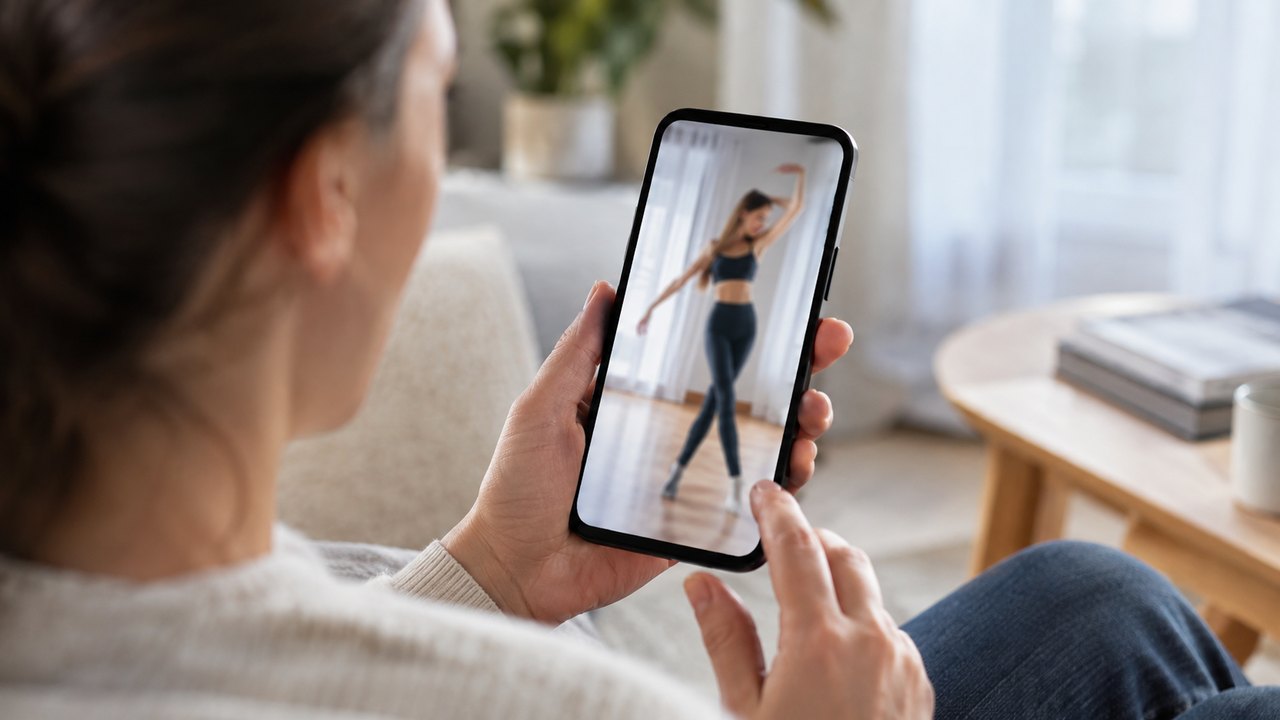
The short answer: upload one clear, full-body photo, choose a scene, confirm the prompt, pick a resolution and a length, check the credit cost, generate, then review the result before you download it. The whole setup takes a few minutes. The render itself runs as a task, so you can close the tab and come back.
Most bad results come from the photo, not the model. A sharp, evenly lit, full-body picture gives the model enough information to keep your face and proportions. A screenshot, a cropped selfie or a photo with a hard shadow gives it gaps to invent, and invented gaps are where extra fingers and wandering faces come from.
This guide walks through all eight steps, then lists the failure modes you are most likely to see and what to change for the next attempt.
예시를 불러왔습니다. 수정하거나 생성해 보세요.
This clip: 30 credits · 11 clips a month for $39.90 (Pro), or 120 a year for $319
What you need before you start
- One photo of one or two people, or a cat or dog. A prompt is enough if you have no photo.
- An account. Login is an email one-time code, so there is no password to create or remember.
- Credits for the render. The studio shows the cost of the current settings before you generate.
Results are private to your account.
Step 1: pick the photo
The model can only preserve what the photo shows. Walk through this checklist before you upload.
| Check | Good | Avoid | | -------------- | --------------------------------- | ------------------------------------------ | | Focus | Sharp eyes and face | Blurry, compressed or motion-smeared | | Light | Even daylight, soft shadow | One side of the face in deep shadow | | Framing | Full body, head to feet | Chest-up crop or a tight headshot | | Background | Plain wall, simple room | Crowded street, busy pattern | | People | One person, two for the duo scene | A group where only one person should dance | | Image type | A real camera photo | Screenshots, filters, heavy retouching | | Hands and feet | Both visible and unoccluded | Pockets, crossed arms, feet out of frame |
A full-body photo matters because the routine uses the whole body: wide stance, a knee lift, a side kick, a full-body shake. If the photo stops at the waist, the model has to guess at legs and shoes, and the guess is usually the part that looks wrong.
If you have a choice, use a photo taken in daylight against a plain wall. If the only good photo has a busy background, use it anyway, but expect the background to change during the clip.
Step 2: choose a scene
The studio starts from four scenes, and each one changes the joke rather than just the backdrop.
- Blue hall — a mirrored dance studio. Best when you want the routine to look like a dance video rather than a meme.
- Office escape — an open-plan corridor with desks and a passing colleague. Best for work humor.
- Pet living room — a sofa, a rug and afternoon light. The scene for a cat or dog.
- Courtyard duo — a sunlit stone courtyard. Best for two people dancing in sync.
Pick the scene first and the prompt second. The scene decides the lighting, the camera height and the background motion, and those are hard to fix later with prompt edits alone.
If none of the four fit, write your own scene in the prompt. Keep it to one location. A clip that moves from an office to a street to a rooftop in ten seconds will look confused even when each part is rendered well.
Step 3: write or confirm the prompt
A working prompt answers four questions in plain language: who is on screen, where they are, what they do, and how the camera records it. The four beats should appear in order, and nothing else should compete with them.
The studio prefills a prompt when you pick a scene. Read it before you generate. Two things are worth checking:
- The four beats are all present. Flash step, langzi kick, bear shake, head sway. If one is missing, the render will often invent a filler move in its place.
- The identity lock is present. A sentence that tells the model to keep the exact face, hair, skin tone and outfit from the photo. Without it, the face drifts toward a generic performer.
Do not stack extra actions on top of the routine. "Dances, spins, jumps, waves and walks toward the camera" gives the model five jobs and ten seconds to do them. It will drop at least two.
The prompt formula guide explains the six parts in detail and includes four complete prompts you can adapt.
Step 4: choose a resolution
Three options, and each one changes both the look and the price.
| Resolution | Best for | Credits for 12 seconds | | ---------- | ----------------------------------------------- | ---------------------- | | 480p | Testing a prompt or a photo before committing | 20 | | 720p | TikTok, Reels and Shorts | 35 | | 1080p | A cleaner master for editing or a larger screen | 90 |
720p is the default for a reason. It is sharp enough for a phone feed, and it keeps the cost low enough that a failed experiment is not expensive. Use 480p when you are unsure about the photo, and 1080p only when the clip is final and you want a cleaner file.
Step 5: choose a length
Clips run 10, 12 or 15 seconds. The four beats fit comfortably in ten seconds if the timing is brisk. Twelve seconds is the standard length used in every video-count claim on the pricing page. Fifteen seconds gives you room for a short pause before the first beat or a beat of stillness after the final look.
| Length | 720p cost | When to pick it | | ---------- | ---------- | ------------------------------------------------------- | | 10 seconds | 30 credits | The default. Four beats, no padding. | | 12 seconds | 35 credits | The standard video. Slightly more breathing room. | | 15 seconds | 44 credits | A pause at the start, or a slower head sway at the end. |
Longer is not automatically better. A fifteen-second clip with eight seconds of dancing and seven seconds of standing still is worse than a tight ten-second version.
Step 6: confirm the credits
The studio shows the credit cost for the current settings before you press generate. Check it against your balance. Each render debits credits up front, and a failed render refunds them automatically, so a model error does not cost you anything.
If you are on a one-time pack, the pack is a fixed number of credits, not a subscription. If you are on a monthly plan, the monthly grant is listed on the pricing page, along with every pack and plan.
Step 7: generate
Start the render and wait for the status to change. Renders run as background tasks, so you can navigate away and come back to the task list. If a render fails, the status says so and the credits return to your balance. Retrying costs the same as the first attempt because the failed one was refunded.
Do not start five renders of the same photo at once hoping one works. Change one variable between attempts: a sharper photo, a simpler scene, or a shorter clip. Five identical attempts usually produce five versions of the same flaw.
Step 8: review and download
Watch the clip at phone size, then watch it again frame by frame around the kick and the final look. These are the checks that matter:
- The face at the start matches the face at the end.
- Both hands have five fingers, and no third arm appears during the shake.
- The feet stay visible during the flash step and the kick.
- The four beats happen in order.
- The background does not melt or swap mid-clip.
- There is no on-screen text or watermark.
If the clip passes, download the MP4. Renders have no watermark. If it fails, note which check failed and change the smallest thing that could fix it.
Common failure modes
| What you see | Likely cause | What to change | | -------------------------------- | ---------------------------------------------------- | ------------------------------------------------------------- | | The face changes halfway through | Soft or filtered photo, weak identity sentence | Use a sharper photo and repeat the identity lock | | A second person appears | The photo has bystanders, or the prompt is ambiguous | Crop to one person and add "alone in frame" | | Hands duplicate or melt | Fast arm movement during the shake | Shorten to 10 seconds, keep hands open and away from the face | | The kick becomes a jump | Beat two is vague | Describe a knee lift, a side kick and the opposite arm swing | | Feet are cut off | Tight crop in the source photo | Use a full-body photo | | The background changes | Busy scene or a moving camera request | Pick a plain scene and ask for a fixed camera | | The order of the beats is wrong | Too many actions in too little time | List the four beats with "then" between them |
After the download
The clip is silent by design. Add a trending sound in TikTok or your editor, label the video as AI-generated, and do not present it as real footage of a real performance. The routine is a real dance; the clip is a generated performance of it.
Ready to try it with your own photo? Open the studio on the home page, or read the photo-to-video feature page for the specific input rules. If your photo keeps failing, the photo tips article covers lighting, framing and background in more depth.
관련 가이드
What Is Shan Shen Bu? Meaning, Origin and the Four Moves
Shan shen bu means flash step: a four-beat Chinese dance routine that went viral in 2026. Here is where it came from and what AI can and cannot do.
Shan Shen Bu AI Prompts That Keep the Face and the Moves
A six-part prompt formula for shan shen bu AI video: subject, scene, four-beat action, camera, identity lock and exclusions, with four full examples.
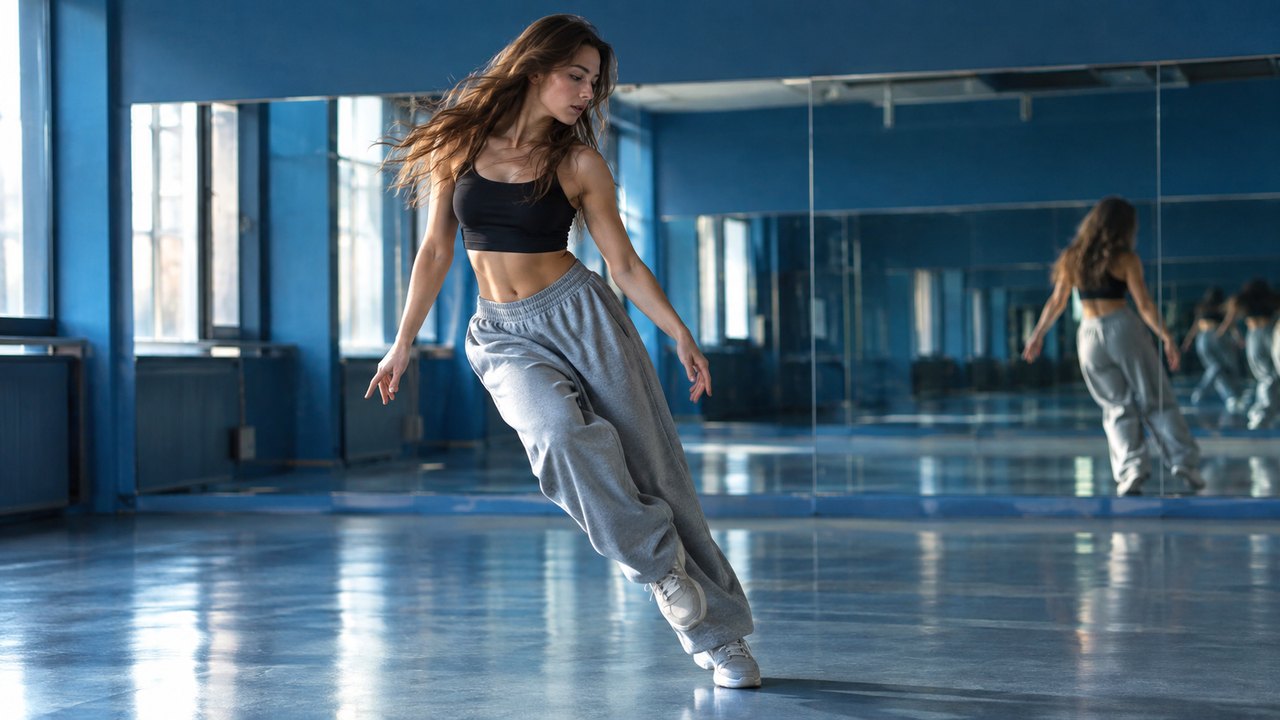
Shan Shen Bu AI Dance: Photo or Text to a 10-Second Clip
How photo-to-video and text-to-video differ, what the model keeps, and the real credit math for a 10 to 15 second shan shen bu AI dance clip.